How to Enable Two-Factor Authentication (2FA) on Bondhoni
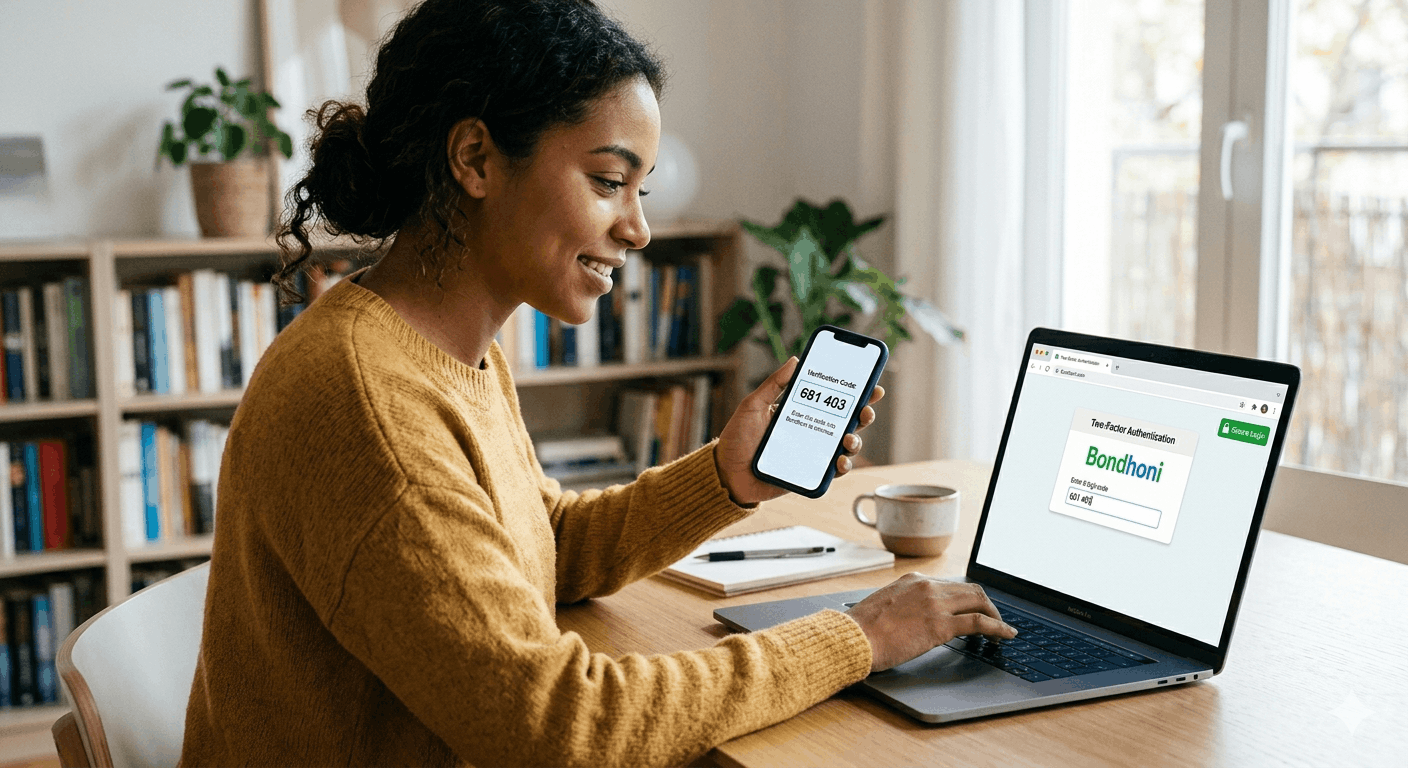
Take Control of Your Security: How to Enable Two-Factor Authentication (2FA) on Bondhoni
In our previous post, we talked about how Bondhoni puts your privacy first. But even with our advanced encryption, there is one step you can take to make your account nearly bulletproof: Two-Factor Authentication (2FA).
Think of your password as the front door key. 2FA is the secondary security system that asks for a special code only you have access to. Even if someone guesses your password, they still won't be able to get in.
Here is how you can set it up in just a few minutes.
Step-by-Step: Setting Up 2FA
- Open Your Settings: Log in to your Bondhoni account and navigate to the Settings & Privacy menu (usually found by clicking your profile icon).
- Go to Security: Select the Security and Login tab.
- Find Two-Factor Authentication: Look for the section labeled "Two-Factor Authentication" and click Edit or Set Up.
- Choose Your Method: Bondhoni typically offers two ways to receive your codes:
- Authentication App (Recommended): Use an app like Google Authenticator or Authy. You’ll scan a QR code, and the app will generate a new code every 30 seconds.
- Text Message (SMS): We’ll send a unique 6-digit code to your registered mobile phone number every time you log in from a new device.
- Verify the Connection: Enter the code displayed on your app or sent via SMS to confirm that the setup was successful.
- Save Your Recovery Codes: This is the most important part! Bondhoni will provide a list of one-time "Recovery Codes." Write these down and keep them in a safe place. If you ever lose your phone, these codes are the only way to get back into your account.
Why Should You Do This?
- Blocks 99% of Account Hacks: Most hackers rely on automated password attacks. 2FA stops them in their tracks because they don't have physical access to your phone.
- Real-Time Alerts: If you receive a 2FA code when you aren't trying to log in, you’ll know immediately that your password may have been compromised, allowing you to change it instantly.
- Peace of Mind: You can browse, share, and connect knowing that your private data is behind a double-locked door.
Your security is a partnership. We provide the tools, and by enabling 2FA, you’re taking the lead in protecting your digital life.
Need help with your other settings?
If you're interested, I can walk you through:
- How to manage your "Activity Log" to see where you're logged in
- Setting up Trusted Contacts to help you recover your account if you get locked out
Which security tip should we tackle next?
Leave a comment
No comments yet. Be the first to share your thoughts!